How to Customize Your Compass
You can customize your Compass on RateCompass in multiple ways. Read all of our tips!
The RateCompass product review service includes several customizable elements that allow you to influence the collection of evaluations. The customizable elements include, for example, a rating form text field and a thank you text field. The customer will be redirected to the Thank You page once the review has been written and submitted. You can also add a link to the thank you page to redirect to a location of your choice - for example, back to the homepage of your online store.
You can also choose the color of the stars (or thumbs) shown with reviews. More on this below.
Customizable text content of the Compass
For customizable text content in Compass, go to your RateCompass dashboard > Compass Settings > Text Content. On the same tab, you can preview the review form and the Thank You page. The preview tool shows you how your texts look to your customers, so you don't have to go through the whole review process yourself.

Review Form Message is displayed at the top of the review form. The purpose of the text is to encourage the customer to submit a product review. For example, the text could be "Thank you for your purchase! Leave a review and tell us about your experience."
Use the Preview button below the field to open the review form with the Compass's current settings. You'll see its colors and texts exactly as your customers do. The preview also includes unsaved changes, so you can try out different wording and see the result before saving.

The After Review Message will appear after you submit your review, on the Thank You page. The purpose of the message is to thank the customer for their valuable feedback, and to encourage them to continue to review products in the future. For example, the text could be "Thank you for your review! We appreciate your time and hope to see you again soon."

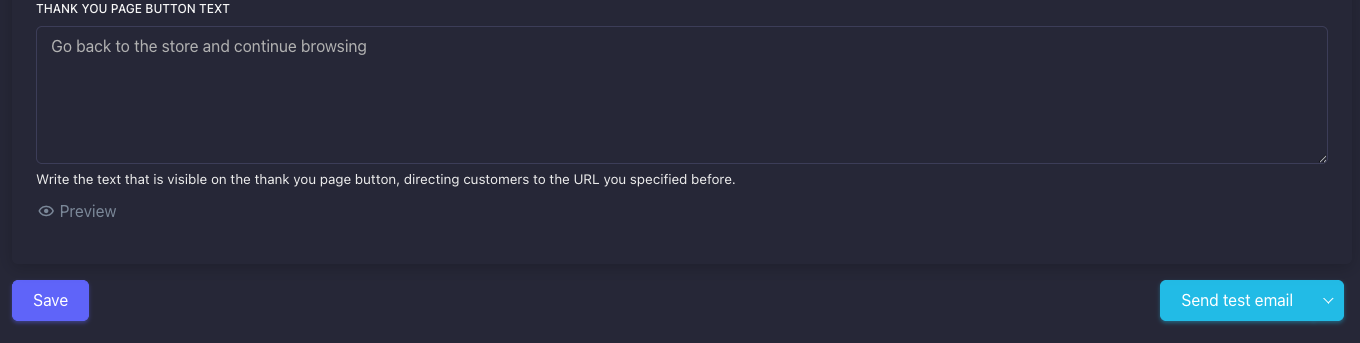
Thank You Page Button Text will appear after submitting a review, on the Thank You page. You can edit the button link from the General Settings tab. In this field, you can tell the customer where the link takes you, e.g. "Return to shopping" if the link redirects to the online store.
Use the Preview button below the field to open the Thank You page and check how it looks to customers after they submit a review.
Sending a test email
At the bottom of the Message Settings page, you'll find the Send Test Email button. It sends a test message to your own email address, so you can see how the review email looks from your customer's point of view. You can send as many test messages as you like, which makes it easy to check the email again after you've made changes.
Changing the color of the Compass stars or thumbs
With the RateCompass Basic plan, you can choose the color of your star or thumb ratings. You'll find the Compass color tool in the RateCompass admin panel under Compass settings > Customization.
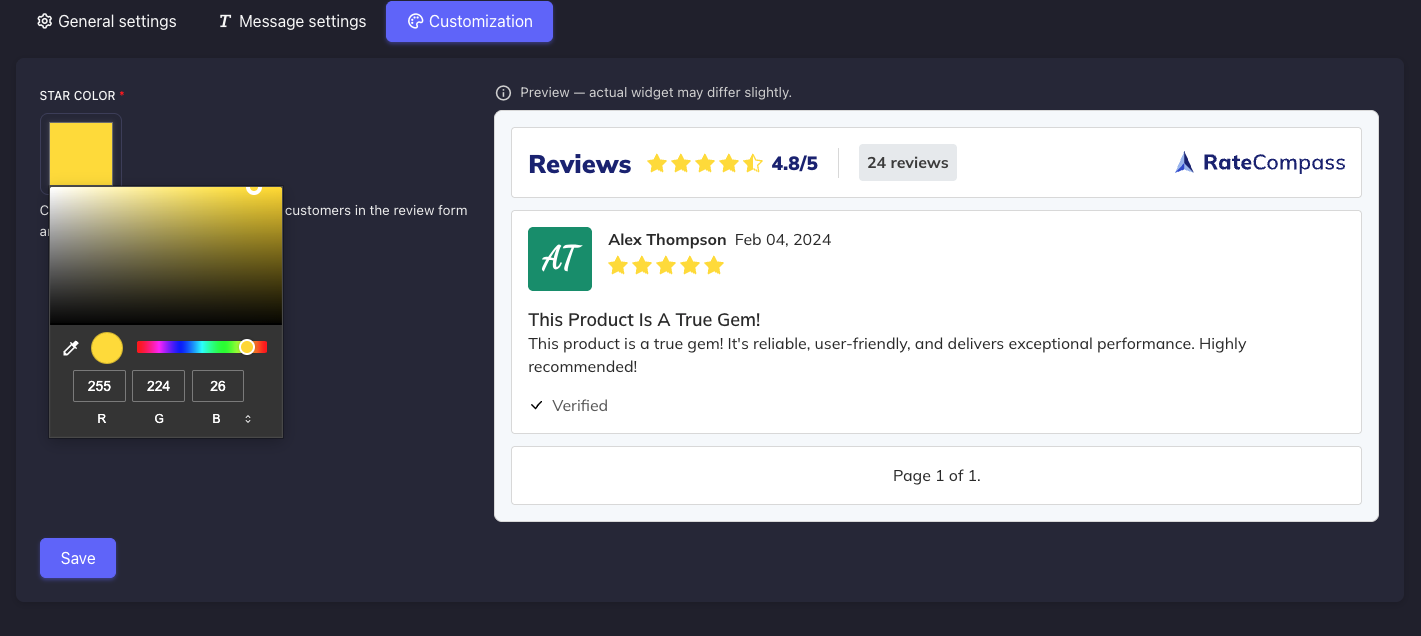
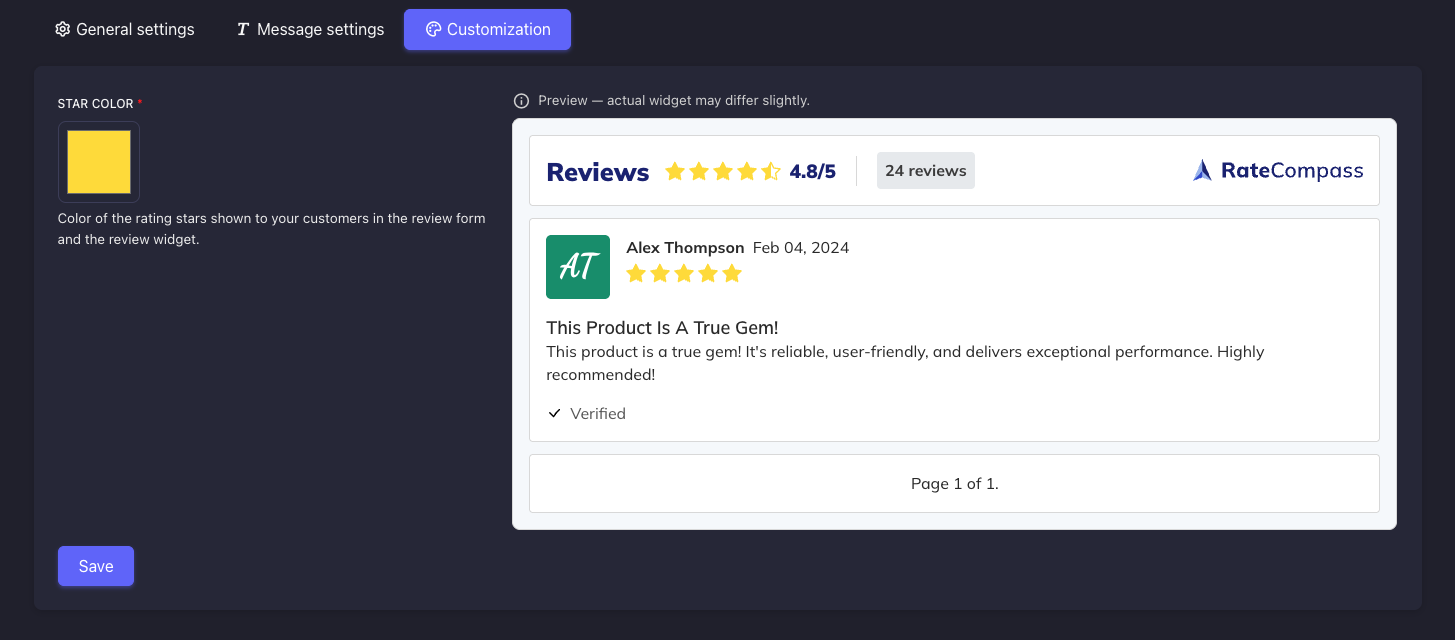
In the Star color field, you can choose a color for the review icons. The color you choose is used in three places: the review form your customers see, the review widget embedded on your product pages, and the preview in the admin panel.
If you switch the review type from stars to thumbs, or the other way round, the icon preview changes to match the new review type. Your chosen color stays the same and is used for that review icon.
In the Star colour field, pick the colour with the colour picker. You can adjust it with the colour field and the slider, or enter an exact colour as RGB values.